Cost Values
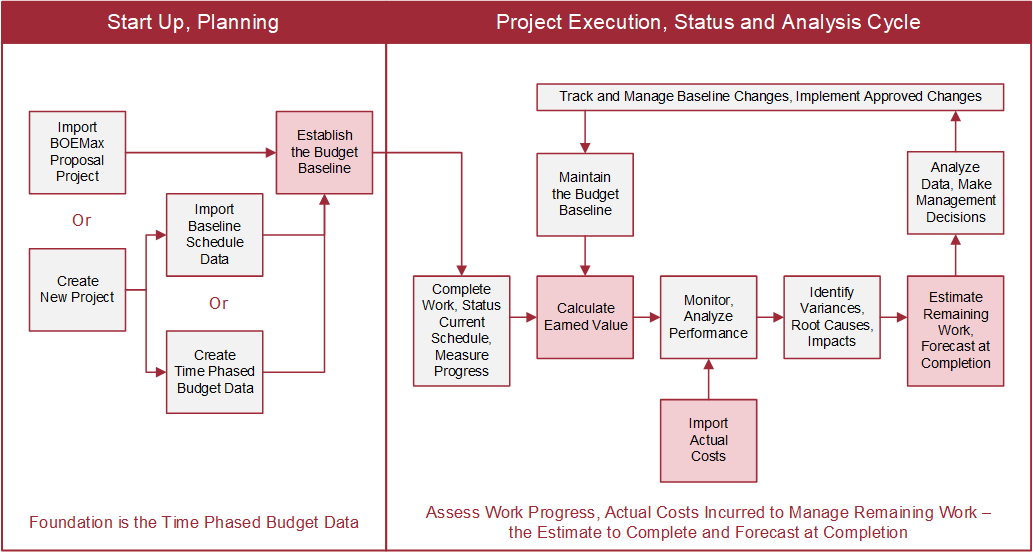
The main EVMax window is where you enter, import, and maintain your time phased cost data for a project including budget, earned value, actual costs, and estimate to complete. It is a row and column grid view similar to Excel designed to help you enter, view, or maintain base cost values (FTE, hours, or direct cost results) and calculated values (indirect cost results) using the framework of the project work breakdown structure (WBS). The time phased budget data is the foundation for assessing project performance and calculating earned value once work begins on the project. The cumulative to date actual costs plus the estimate to complete the remaining work assist in determining the project's likely estimated cost at completion.
This process of establishing the foundation of the time phased budget and assessing work performance every reporting period to manage the remaining work and forecast the cost at completion is illustrated below.
 What to Do First
- The recommended approach is to import an existing project from BOEMax to create the project in EVMax. The import process creates a new project in EVMax that includes the project's data structure, calendar, rates, resource structure, time phased cost estimate data, and documentation. The cost estimate data becomes the budget data in EVMax. See Import a Project from BOEMax. You must be an administrative user to import an existing project from BOEMax into EVMax. This is also your best option for implementing the Change Control Workflow Process to manage changes to the budget data.
- Should you wish to set up a new stand alone project in EVMax, follow these steps instead:
- Set up the core project data. At a minimum, this includes the calendar structure, rate structure, resource structure, and codes such as the work breakdown structure (WBS) for the project. Code, calendar, rate, and resource structures are unique to each project. You also have the option of setting up global calendar, rate, resource, and code structures projects can share. See Setup Project Data. You must be an administrative user to set up the core data.
- Enter or import the WBS for the project. See Create a Code Structure or Import a Code Structure. You must be an administrative user to create or import the WBS.
- Create the project and enter or set project level options. As part of the set up process, the calendar structure, rate structure, resource structure, and codes created in Step a and b are assigned to the project. Be sure to set the project start and end dates in the Settings tab as this determines the project's period of performance and calendar reporting period selection options. See Manage Projects. You must be an administrative user to create a new project.
- Optional. Set up standard documents for your project so you can enter statement of work details, technical or deliverable requirements, quantifiable backup data, or risk and opportunity details. See Add Project Standard Documents.
- Set the Project Budget Base for the new project. This includes the contract total cost value, budget baseline value, and budget set aside as management reserve. When you have elected to implement the change control workflow process for the project or want to track changes to the budget baseline, also Enable the Change Control Log. You must be an administrative user to enter the total budget values for the project and enable the log.
- Generate Project Cost Codes for the actual costs and forecast data. You do this once for a new project to set the level of data detail required for your business environment. The data may be at the control account or work package level. You must be an administrative user to generate these cost codes.
- Set the Current Period for the new project. This is the first calendar reporting period end date for the project. You do this once for a new project. You must be an administrative user to set the project's current period.
- Optional. Establish the variance thresholds for the project. See Set Variance Thresholds.
Budgeting Process Steps - Using Cost Estimate Data from BOEMax
- Select in the Navigation Menu to display the main EVMax window. The window is automatically populated with the WBS hierarchy and budget data imported from BOEMax. Also see Main EVMax Window.
- Optional. Generate the initial estimate to complete data from the budget data. See Generate Forecast. You must be an administrative user to generate the estimate to complete data.
- Produce reports. See Reports.
Budgeting Process Steps - Using Schedule Data, Stand Alone EVMax Project
- Select in the Navigation Menu to display the main EVMax window. Provided you have built out the WBS in EVMax, the window is automatically populated with the WBS hierarchy. Otherwise you can import the WBS hierarchy details when you import your schedule data to create the budget data. At a minimum, you must create the WBS code structure and enter the level 1 WBS element. Also see Main EVMax Window.
- Complete the necessary upfront planning to map your schedule activity and resource data to the applicable fields in EVMax. See Schedule Integration. Then you can Import Schedule Data to create the time phased budget data. You must be an administrative user to import the schedule data.
- Optional. Generate the initial estimate to complete data from the budget data. See Generate Forecast. You must be an administrative user to generate the estimate to complete data.
- Produce reports. See Reports.
Budgeting Process Steps - Stand Alone EVMax Project
- Select in the Navigation Menu to display the main EVMax window. The window is automatically populated with the WBS hierarchy ready for you to begin entering data. Also see Main EVMax Window.
- Identify Control Accounts. In EVMax, control accounts are the lowest level of the WBS and are a defined summary level useful for reporting. Control accounts are also used for the workflow process and determine the level of data detail in the workflow forms. Control accounts can also be identified once the work packages have defined.
- Define Work Packages for the control accounts with start dates, end dates, and durations.
- Assign Resources to the work packages.
- Enter the budget FTE, hours, or direct cost base or direct cost base result values for the assigned labor and non labor resources in the applicable calendar month or time phase the values within the work package start and end dates. See Enter Base Values.
- Optional. Generate the initial estimate to complete data from the budget data. See Generate Forecast. You must be an administrative user to generate the estimate to complete data.
- Produce reports. See Reports.
Status and Analysis Cycle Process Steps
- Advance the Calendar to the next calendar reporting period end date (current time now) in the main EVMax window, Admin tab. You must be an administrative user to advance the calendar for a project. As an alternative, you can also use the ENS window to advance the calendar for a group of projects.
- Status Work Packages and Status Material Work Packages to calculate earned value. Otherwise, if you used schedule data to create the budget data, Import Schedule Status to calculate earned value. Importing schedule status also applies to projects where the schedule data was used to create the data in BOEMax and shared with EVMax.
- Import Actual Costs from the accounting system.
- Maintain the Estimate to Complete the remaining work. You can either generate the data in EVMax, import the current schedule data, or import the data from another system.
- Conduct Performance Analysis or Financial Analysis to proactively manage the project's work effort, resources, and cash flow.
- Produce reports. See Reports.